Using RStudio via OnDemand
RStudio is a code development environment for R. It provides an intuitive web interface for developing your R workflow interactively. Using RStudio on Apocrita via OnDemand allows you to scale to much larger datasets and workloads without putting a strain on your local machine. Please refer to the overview section for instructions on how to login to OnDemand.
Starting an RStudio session
Select an RStudio Server version from the Servers list of the Interactive Apps drop-down menu, or from the My Interactive Sessions page.
Once you have chosen the resources your job will need, including the version of RStudio Server required, click Launch to queue the job. Once resources are allocated, click the blue Launch RStudio Server button to connect to your session.
Choose your core request wisely
R will only use multiple cores if your code calls an appropriate
parallelisation library such as parallel. When selecting a parallelisation library
please be aware that detectCores() is not cluster aware and will return all cores on a
node even if they are not actually available. Please ensure your code is parallelised
in short test sessions before requesting a large number of cores for a long runtime.
See the main R application page for further details:
R - Example Jobs
Choose your RAM request wisely
Please establish a baseline of expected RAM usage in short test sessions before requesting a large amount of RAM for a long runtime.
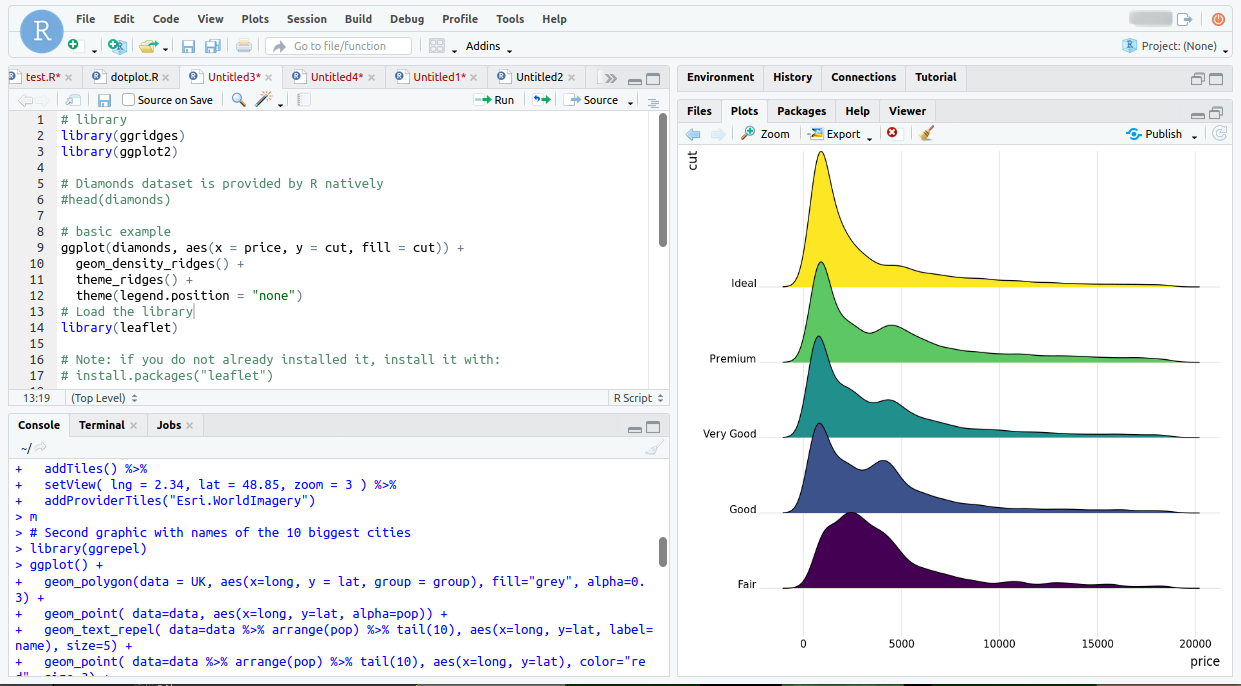
Once connected, the familiar RStudio interface is presented, and you will be able to use the allocated resources, and access your research data located on Apocrita.
Installing packages
Don't use renv for versions older than RStudio 2026!
The renv project manager has
become popular, but we only support its use when using RStudio 2026 and
newer, as we explicitly changed how R runs for those versions (see
this blog post for
more information).
renv aggressively caches existing binaries. When using RStudio 2025 or
older on Apocrita, sometimes the cached binaries for personal installs
aren't compatible with all environments and can cause issues. If you want to
integrate renv into your work on Apocrita, please use RStudio 2026 or
newer.
It's likely your scripts will require additional R libraries; these can be
installed using the install.packages() command in the console window of
RStudio. If the package cannot be installed due to missing dependencies, please
contact us and we will try to add
them to the
container
RStudio runs from (for RStudio 2026 or newer) or the
Spack environment
(for RStudio 2025 or older) that is activated alongside RStudio.
Further tips and guidance regarding R package installations can be found on our blog: Untangle installations
Known issues
Web browser security
For security reasons, modern browsers will restrict OnDemand from embedding certain content in the RStudio application.

Rprojects and renv
As detailed above, the use of renv is only recommended
when using RStudio 2026 or newer.
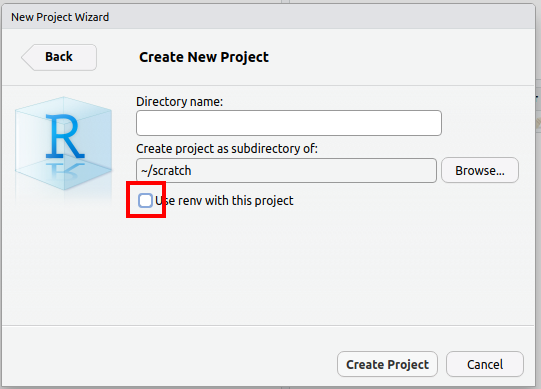
If you use the Rproject feature of RStudio, the default is to use renv as
well. We recommend un-checking this box when using RStudio 2025 or older:
Exiting the session
If a session exceeds the requested running time, it will be killed. You may receive a message "The previous R session was abnormally terminated...". Click OK to acknowledge the message and continue. To avoid this message, it's good practice to exit the session cleanly when you have finished.
To cleanly exit RStudio, click File -> Quit Session... and then release resources back to the cluster queues by clicking the red Delete button for the relevant session on the My Interactive Sessions page.
For further guidance on exiting RStudio sessions please see this section of our blog: Exit intentionally
Useful additional tips
Further tips regarding the usage of RStudio can be found under our blog site:
R Top Tips